P › P.2 How to set up GA4 for GetServerSide
Create or confirm the Analytics account, prepare the GA4 properties, and record the measurement IDs needed for the setup flow.
GA4 stands for Google Analytics 4. In this guide, GA4 is where you create the Browser and Server properties used during the setup and validation flow.
GA4 is the current Google Analytics product used to collect site and app measurement data.
For this setup, GA4 access is needed so the app can scan your existing setup. During the build step, a test server GA4 property is created to validate the server-side pipeline without touching your production data.
For this setup, you should have or prepare:
- Google Analytics account access
- Your existing GA4 property with its production web data stream and measurement ID
- A test server GA4 property (created during setup to validate the server-side pipeline, then retired after the switch)
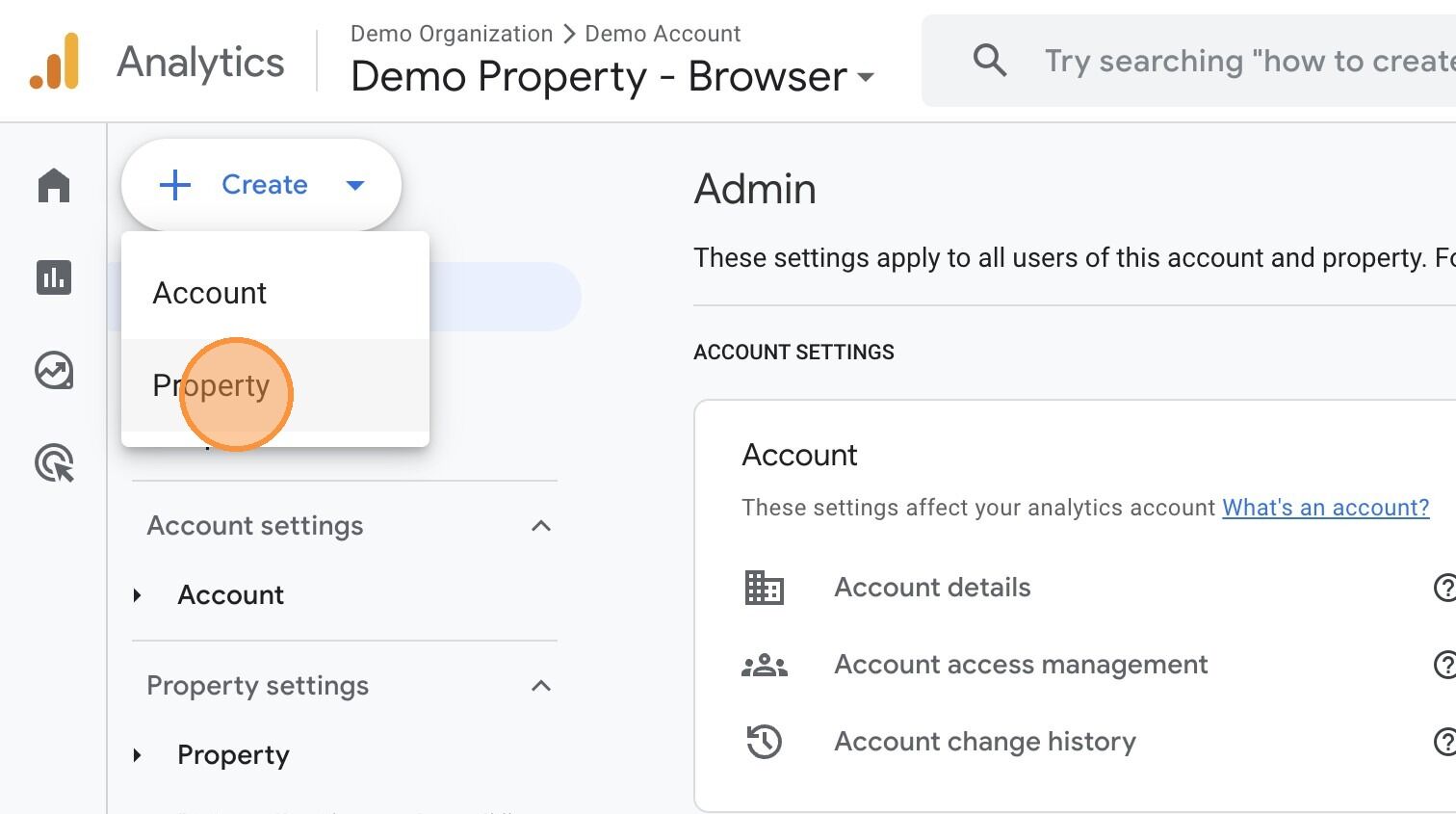
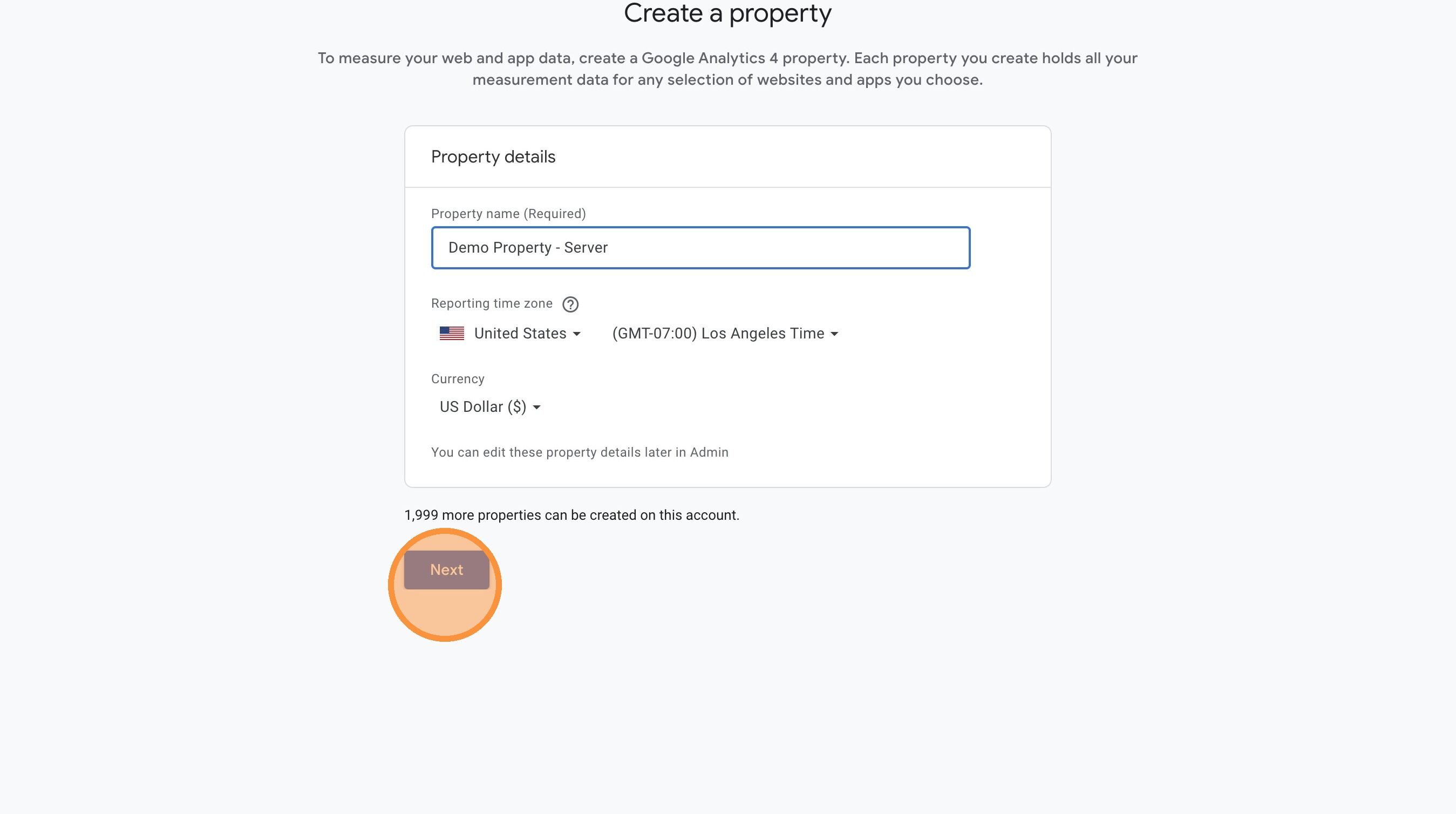
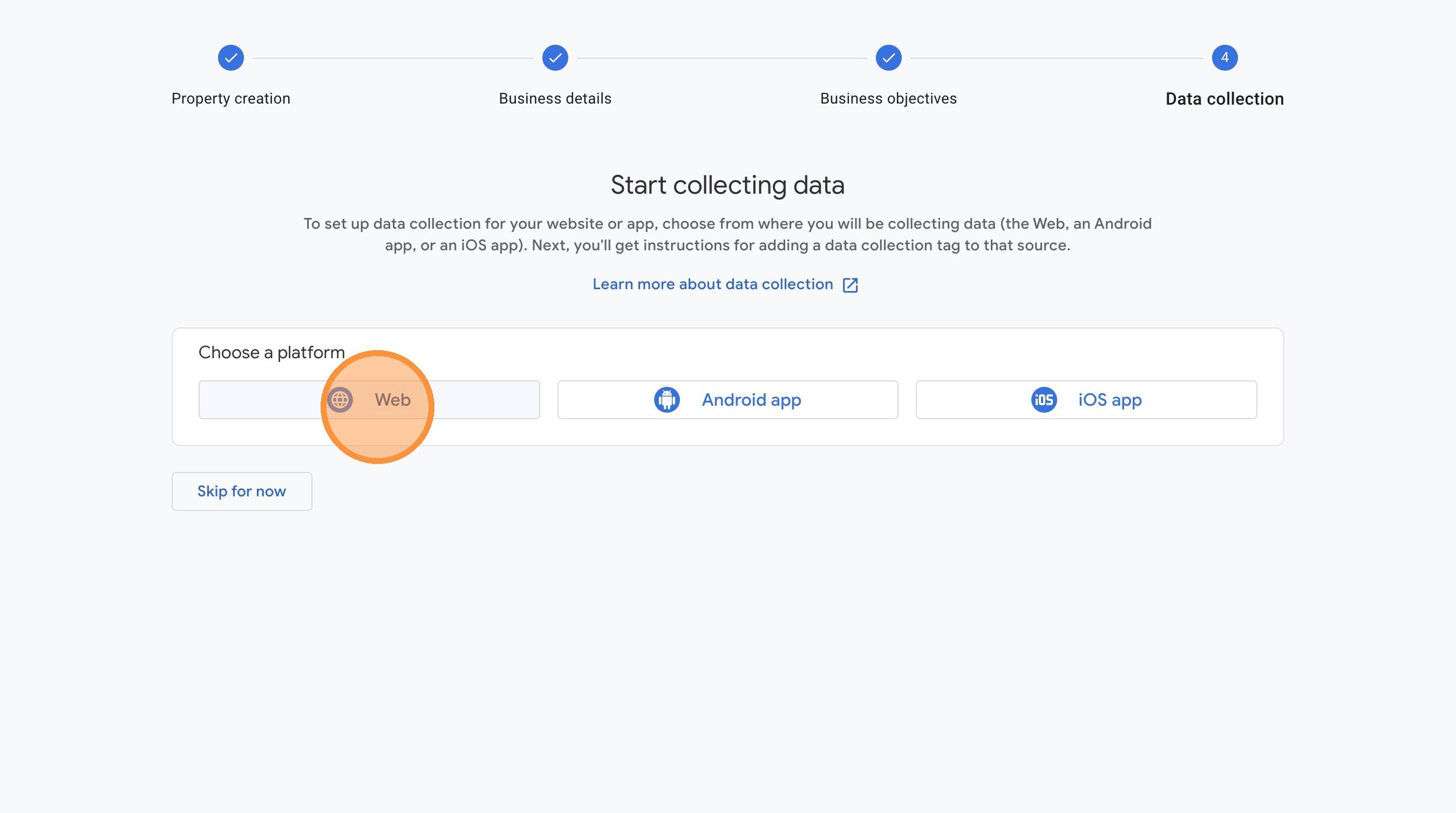
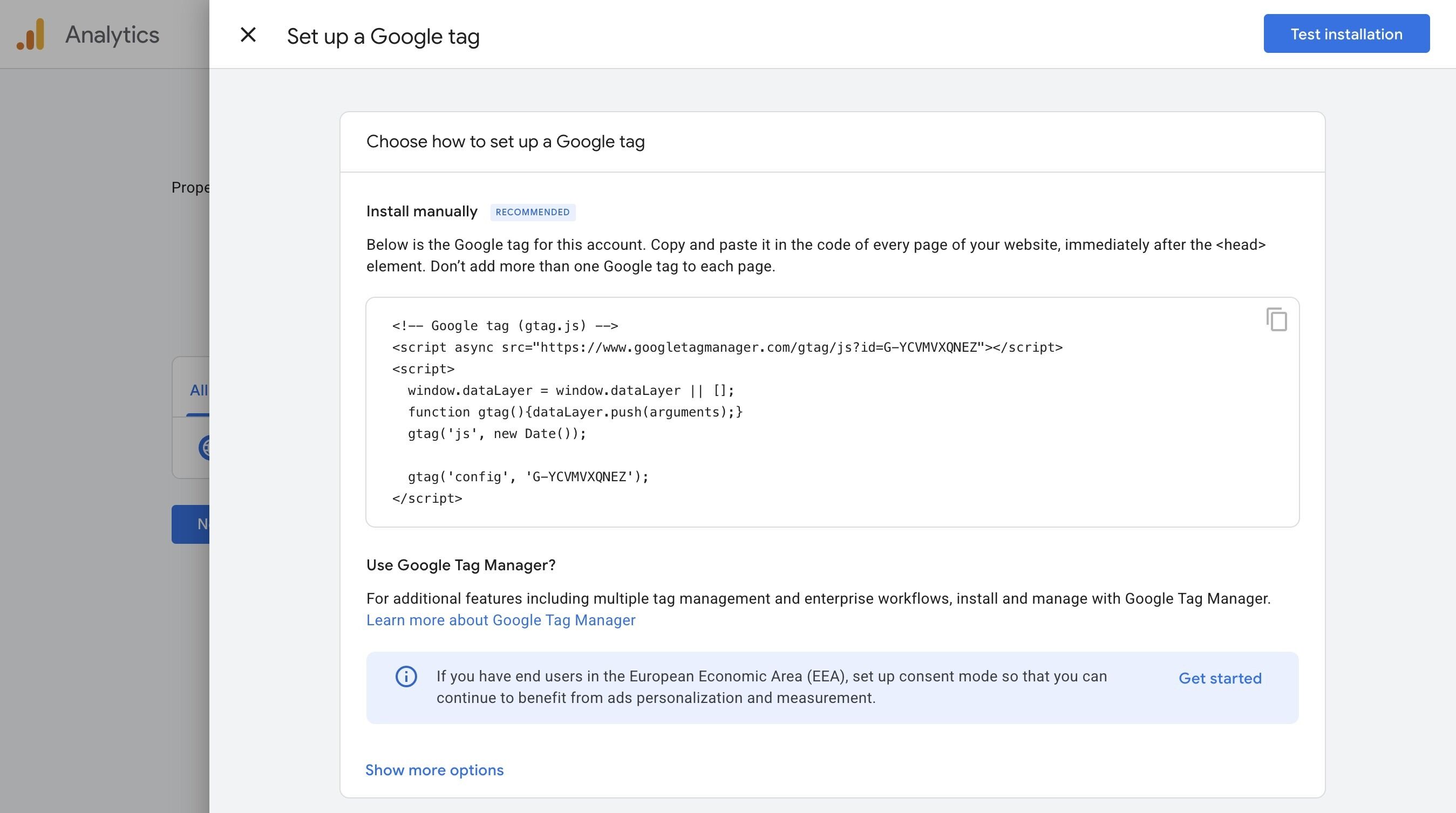
Walkthrough: Create a GA4 property and web data stream
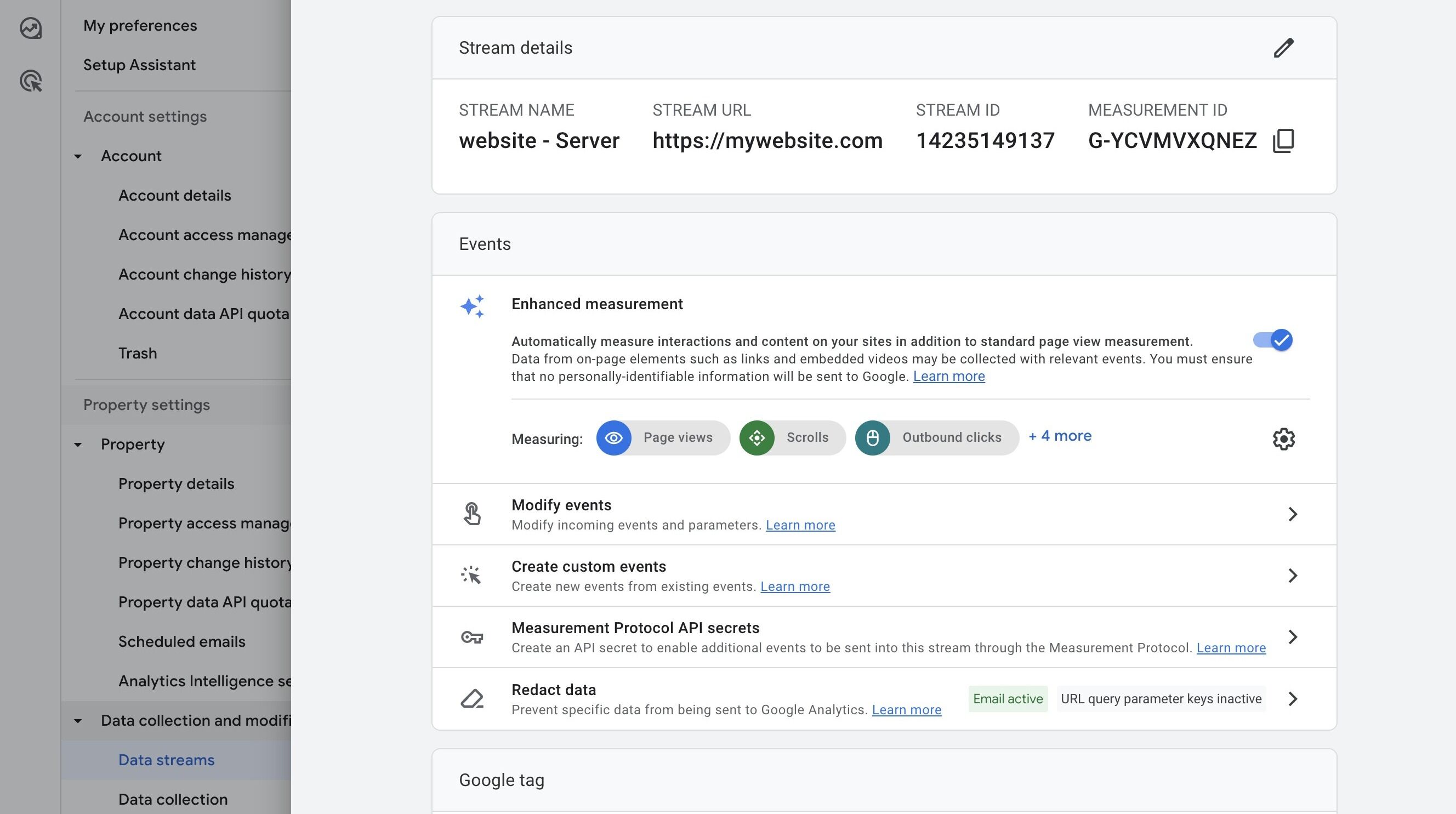
This walkthrough covers creating a property and adding a web data stream. The screenshots show creating the Server property (with the Browser property already done), but the process is identical for both. This is an abbreviated walkthrough since you should already be familiar with GA4 setup. It does not correspond exactly to the detailed steps below.
-
1
Google Analytics account access
Sign in at analytics.google.com with the same Google account used in the app. You need admin access to create properties, manage data streams, and modify settings.
To verify:
- Open analytics.google.com.
- Switch to the correct account and open Admin.
- Confirm you can view and edit properties. If not, request admin access before continuing.
-
2
Browser property and web data stream
The browser property is the GA4 property currently collecting data on the production site. It is selected during audit discovery in the app. The app validates that this property exists and is accessible via the Analytics Admin API.
The property must have exactly one web data stream with a measurement ID (format
G-XXXXXXX). This ID identifies the data stream in GTM config tags and gtag.js snippets. Data collection is routed by the measurement ID, not the stream URL.Each web data stream also has a stream URL (e.g.
https://yoursite.com). This is informational — GA4 uses it for display purposes and some enhanced measurement features.To verify:
- In GA4, open Admin and select the production property.
- Open Data Streams and confirm there is a web data stream.
- Record the measurement ID.
-
3
Test server property
The test server property receives forwarded events from the server-side GTM container during setup. It validates that the pipeline works — events arrive, data matches the browser property, no gaps — without touching production data.
The app can create this property automatically with the name
Test Server - <browser property name>. Settings are copied from the browser property: same account, timezone, currency, and stream URL. A web data stream is created with its own measurement ID.Alternatively, you can create a test server property manually in GA4 Admin and select it in the app.
After the switch, the test server property can be retired. It is not a permanent second property.
-
4
Distinct measurement IDs
Each property’s web data stream has its own measurement ID (
G-XXXXXXX). The browser and test server properties must use different measurement IDs so events are routed to the correct property.If both properties share the same measurement ID, server-side forwarding will double-count events. The app validates this automatically.
-
5
Matching timezone
Mismatched timezones cause session boundaries and event timestamps to disagree between browser and server data, making comparison unreliable.
Location: Admin > Property Settings > Reporting time zone
-
6
Matching currency
Mismatched currencies mean revenue and e-commerce metrics are not directly comparable without conversion.
Location: Admin > Property Settings > Currency
-
7
Matching data retention
Mismatched retention periods cause gaps when comparing historical data between the browser and server properties.
Location: Admin > Data Settings > Data Retention
-
8
Matching enhanced measurement
Enhanced measurement controls automatic tracking of: scrolls, outbound clicks, site search, video engagement, file downloads, page changes, and form interactions.
If toggles differ between properties, one will collect events the other does not. This makes browser-vs-server comparison inaccurate during validation.
If you plan to create manual scroll or outbound-click tags in GTM, disable the overlapping enhanced measurement events in both streams first, or use different custom event names to avoid double-counting.
Location: Admin > Data Streams > [web stream] > Enhanced measurement
Validation checklist
The app validates these automatically. All must pass before proceeding:
- Browser property exists and is accessible
- Browser property has a web data stream with a measurement ID
- Test server property exists and is accessible
- Test server property has a web data stream with a distinct measurement ID
- Measurement IDs are different between browser and server
- Timezone matches between both properties
- Currency matches between both properties
- Data retention period matches between both properties
- Enhanced measurement toggles are identical on both data streams
In GA4, you can verify each of those items like this:
- In the app, both the browser and test server properties must be selected on the <strong>Google Analytics Setup</strong> page.
- Click <strong>Validate</strong> to run all checks. Each row shows the requirement, current value, and status.
- Fix any failed checks in GA4 Admin, then re-validate.
From there, go back to P.4 Settings in the Platform Setup Guide.